Account and security
Password, e-mail, notifications, data export and deletion.
Under Settings in the side navigation you manage your account itself: your public profile, language, notifications, password, e-mail address, your data and deleting the account. On this page you'll find the steps for each of them. Role-specific details, such as a publisher's tax profile, live in that role's dashboard.
In short:
- Display name, Bio, Avatar and Language are at the top. Your handle can't be changed.
- Changing your password or e-mail address signs you out on every device.
- Sign out everywhere ends every session, for example after losing a phone.
- You can download your data as a JSON file and delete your account, as long as no money is still open.
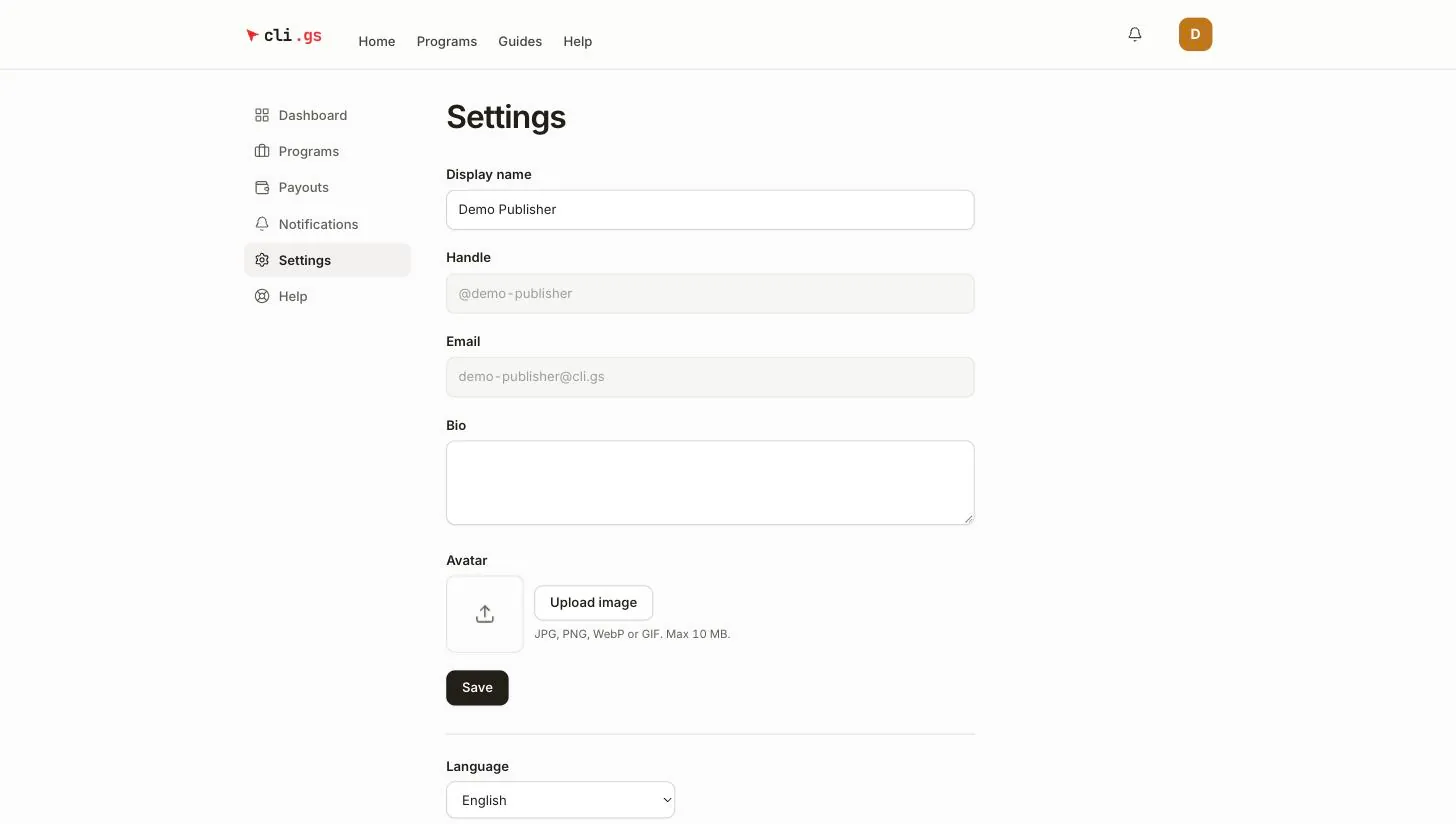
Profile and language
At the top you edit what others see: Display name, Bio and Avatar. Click Save to apply. Your Handle and Email are shown but can't be edited here. The handle is fixed for good. The e-mail address has its own procedure, described below.
Under Language choose English, Deutsch or Türkçe. The choice applies to the interface and to the e-mails we send you.
Notifications and news
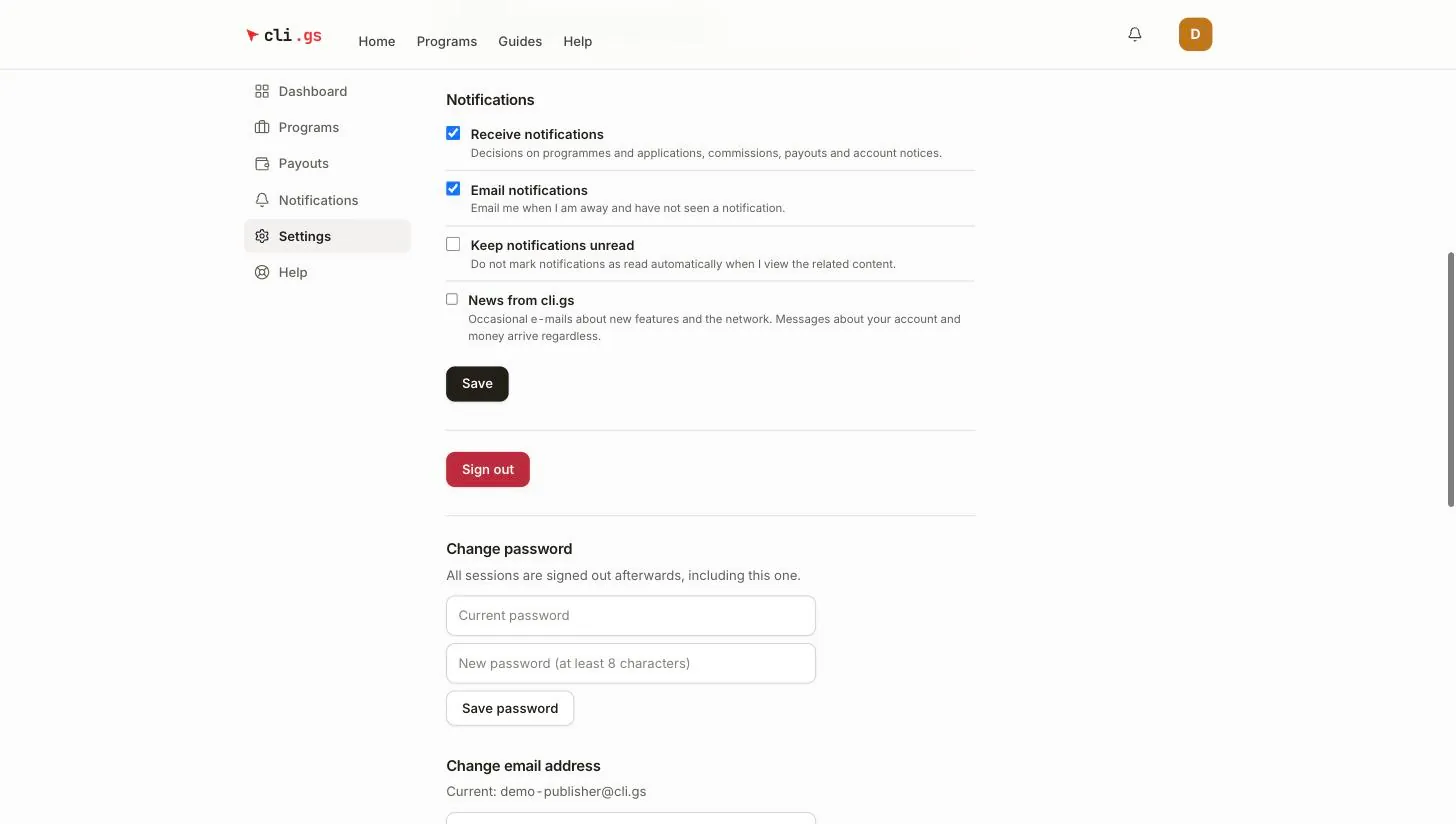
| Setting | What it does |
|---|---|
| Receive notifications | Notifications in the app: decisions on programmes and applications, commissions, payouts and account notices. |
| Email notifications | We e-mail you when you are away and have not seen a notification. |
| Keep notifications unread | Notifications are not marked as read automatically when you open the related page. |
| News from cli.gs | Occasional e-mails about new features and the network. Optional. |
Click Save below the toggles. Switching off News from cli.gs stops only those news e-mails. Messages about your account and money arrive regardless. Every news e-mail also contains an unsubscribe link.
Password
- Under Change password, enter your current password.
- Enter a new password with at least 8 characters.
- Click Save password.
Afterwards every session is signed out, including the one you're using. Sign in again with the new password. We also send you an e-mail and a notification, so you notice if someone else changed it.
If you signed up with Google or GitHub, the section is called Set a password and asks only for the new one. After that you can also sign in with your e-mail address.
Change your e-mail address
- Under Change email address, enter the New email address and your current password.
- Click Send confirmation link.
- Open the link in the e-mail sent to the new address. It's valid for 24 hours.
- Click Confirm address.
Your current address stays active until you confirm, so a typo can't lock you out. While you wait, the settings show the pending address. After confirming, your old address receives a notice. All sessions are signed out, and you sign in again.
Sessions
Sign out everywhere ends every session on every device, including this one. Use it after losing a phone or after signing in on a shared computer. To sign out only here, use Sign out.
Download your data
Under Your data, click Download data. You get everything we store about you as a JSON file. You can download it a few times per hour.
Delete your account
- Under Delete account, type your handle.
- Enter your password.
- Click Delete account for good.
Your name, e-mail address, profile and sign-in are removed for good. Payouts and credit notes are kept for ten years, as the law requires. They contain nothing that identifies you beyond what the credit note itself shows.