Create your account
Sign up, confirm your e-mail and choose a role.
One account is all you need, whether you want to run a programme, promote programmes, or both. On this page you sign up, confirm your e-mail address and take on the role you want. You'll also see how to sign in again and what to do if you forget your password.
In short:
- Sign up with a display name, a handle, your e-mail address and a password.
- Confirm your e-mail address. Without that you can't create a merchant or publisher profile.
- Your handle can't be changed later.
- You take on a role by creating its profile. One account can hold both roles.
Sign up
- Open Create account (top right, or
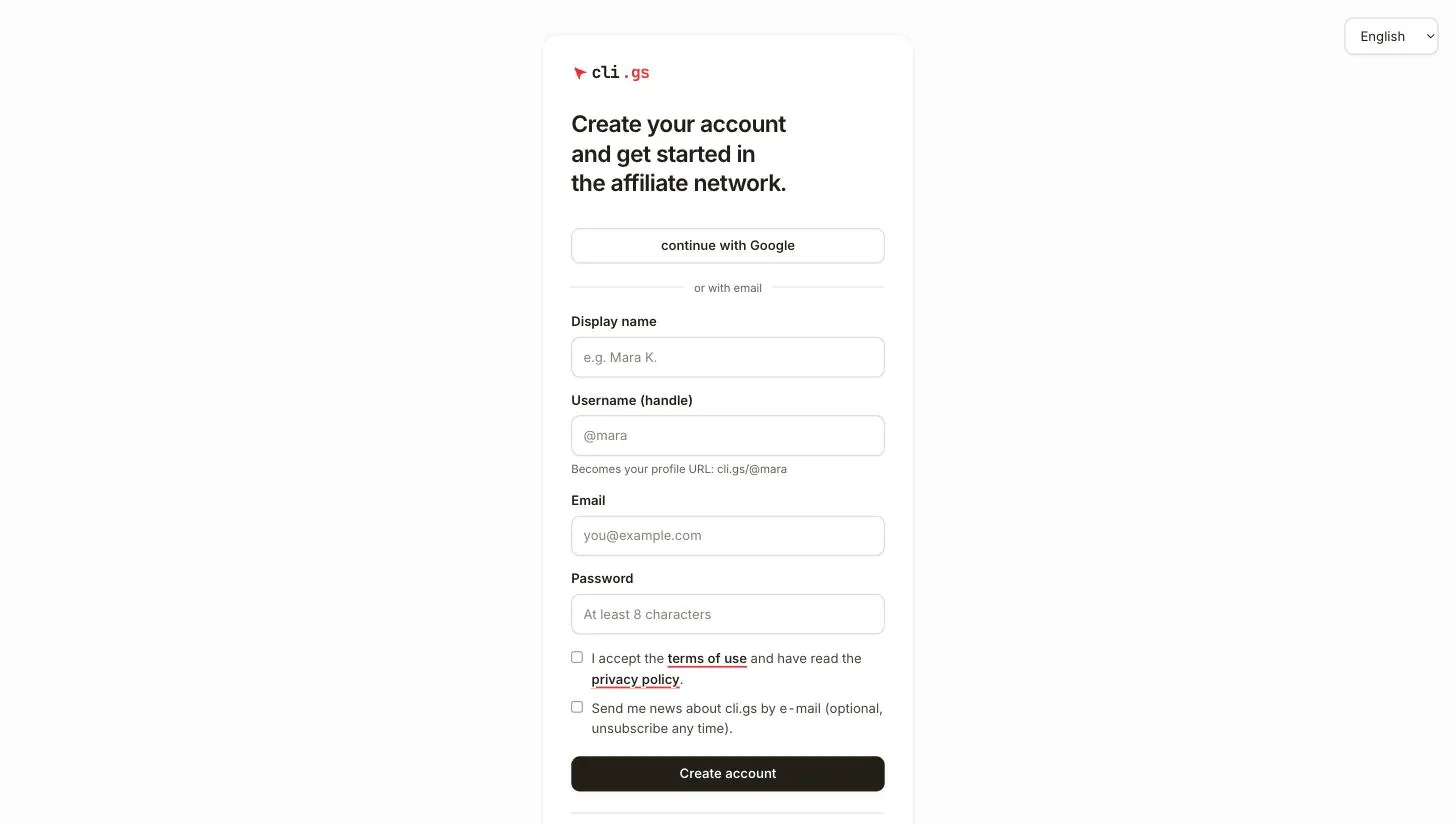
cli.gs/signup). - Fill in Display name, Username (handle), Email and Password (at least 8 characters).
- Tick the box to accept the terms of use and confirm that you've read the privacy policy. This is required.
- Optionally tick "Send me news about cli.gs by e-mail". It's off by default. You can change it at any time in the settings.
- Click Create account. You're signed in straight away.
What the fields are for:
- Display name: how other people see you, for example "Mara K.". You can change it later.
- Username (handle): 3 to 20 characters, using lower-case letters, digits and underscores. It becomes your profile URL
cli.gs/@handle. As a publisher, it's also the first part of every affiliate link. The form checks as you type whether the handle is still free. - Email: where the confirmation link and every notice about money go.
Confirm your e-mail address
Right after sign-up we send you a confirmation e-mail. Open the link in it. On the page that opens, click Confirm email address. We ask for this click on purpose: mail scanners open links automatically and would otherwise use up your link before you do.
- The link is valid for 24 hours and can be used once.
- Until you confirm, a banner in the app reminds you. Click Resend email there to get a new link.
- You must confirm your address before you can create a merchant or publisher profile. Payouts, invoices and every notice about money go to this address.
Sign in with Google or GitHub
If the Google or GitHub buttons appear on the sign-up and sign-in pages, you can use them instead of a password. cli.gs then creates a new account with a generated handle. Your e-mail address counts as confirmed if the provider has verified it.
An account with the same e-mail address may already exist. Signing in with a provider then links to that account, but only once its e-mail address has been confirmed. Otherwise you see a message asking you to sign in with your password and confirm your address first. After that, the provider works too.
Choose a role
There is no role question at sign-up. You take on a role by creating its profile:
- Publisher: open any programme in the marketplace and click Apply as a publisher. If you don't have a publisher profile yet, you're taken to Become a publisher first and then back to the application. See Become a publisher.
- Merchant: click Create a programme for free on the home page or For merchants in the footer. See Become a merchant.
You can hold both roles. The side navigation then shows a merchant section and a publisher section.
Sign in
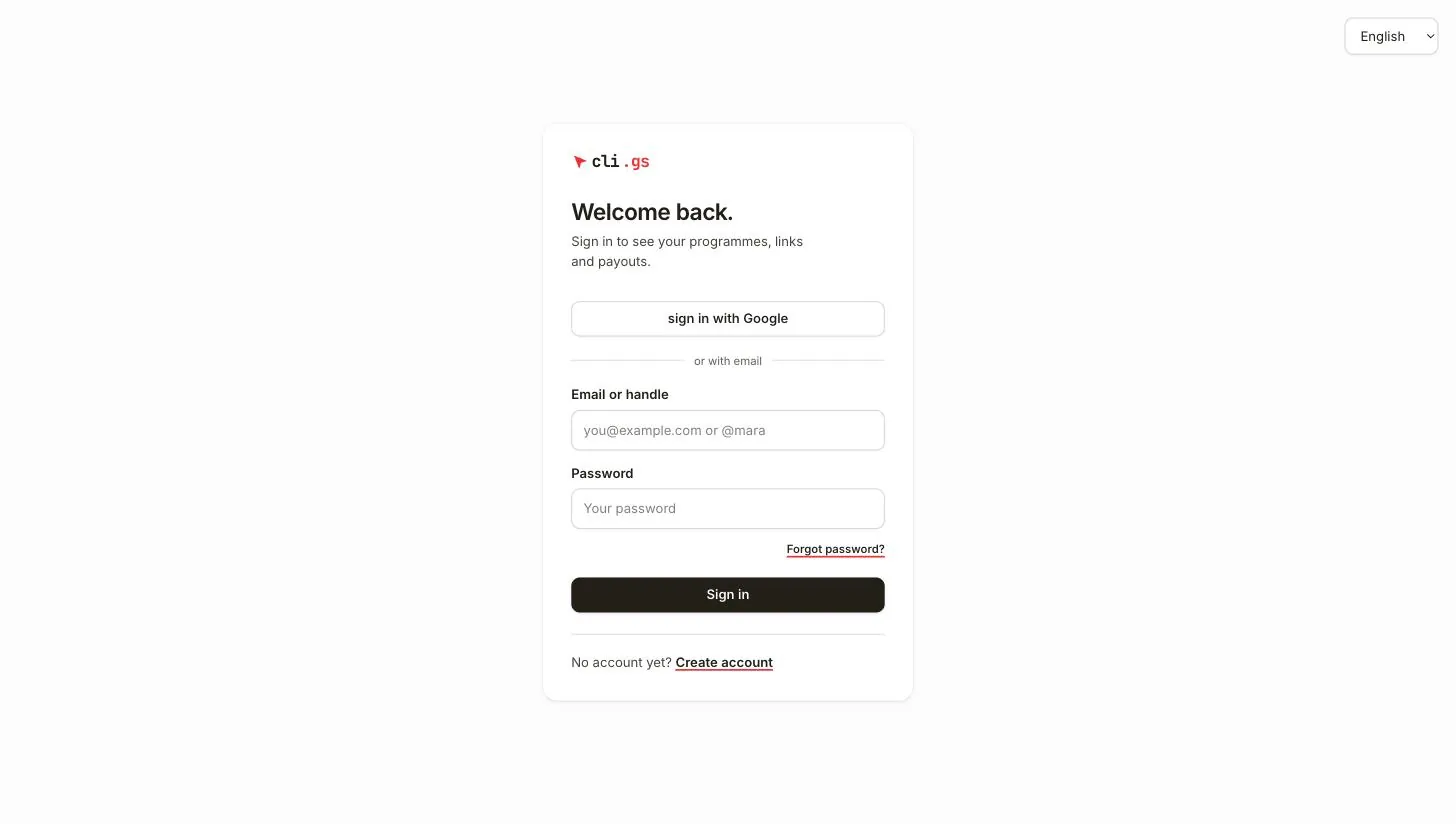
Open Sign in. Enter your Email or handle and your Password. After several failed attempts in a short time, sign-in is paused for a while. Wait a few minutes and try again.
If your account has been suspended, the sign-in form tells you so after a correct password. We've also sent you an e-mail with the reason.
Forgot your password?
- Click Forgot password? on the sign-in page.
- Enter your e-mail address and click Send link. For privacy, the page always confirms, whether or not an account exists.
- Open the link within one hour and choose a new password (at least 8 characters).
Resetting your password signs you out on every device.