Use your links
Your link, product links, parameters and ad labelling.
Once a merchant approves you, you get a personal affiliate link for the programme. Every click on it is recorded, and every sale the shop reports for it is credited to you. On this page you'll learn the link format, product links, the parameters you can add and how to label your links.
In short:
- Your link is
https://cli.gs/@yourhandle/programmetoken. Copy it from the programme page under Programs, tab Active. - Product-list programmes need a product ID at the end of the link.
- Only parameters the merchant has allowed are passed on to the shop.
- Label every affiliate link as advertising.
Find your link
Open Programs in the publisher dashboard and the tab Active. Click the programme. Under Your affiliate link you see the link with a Copy button. Below it are the clicks and conversions it has brought so far.
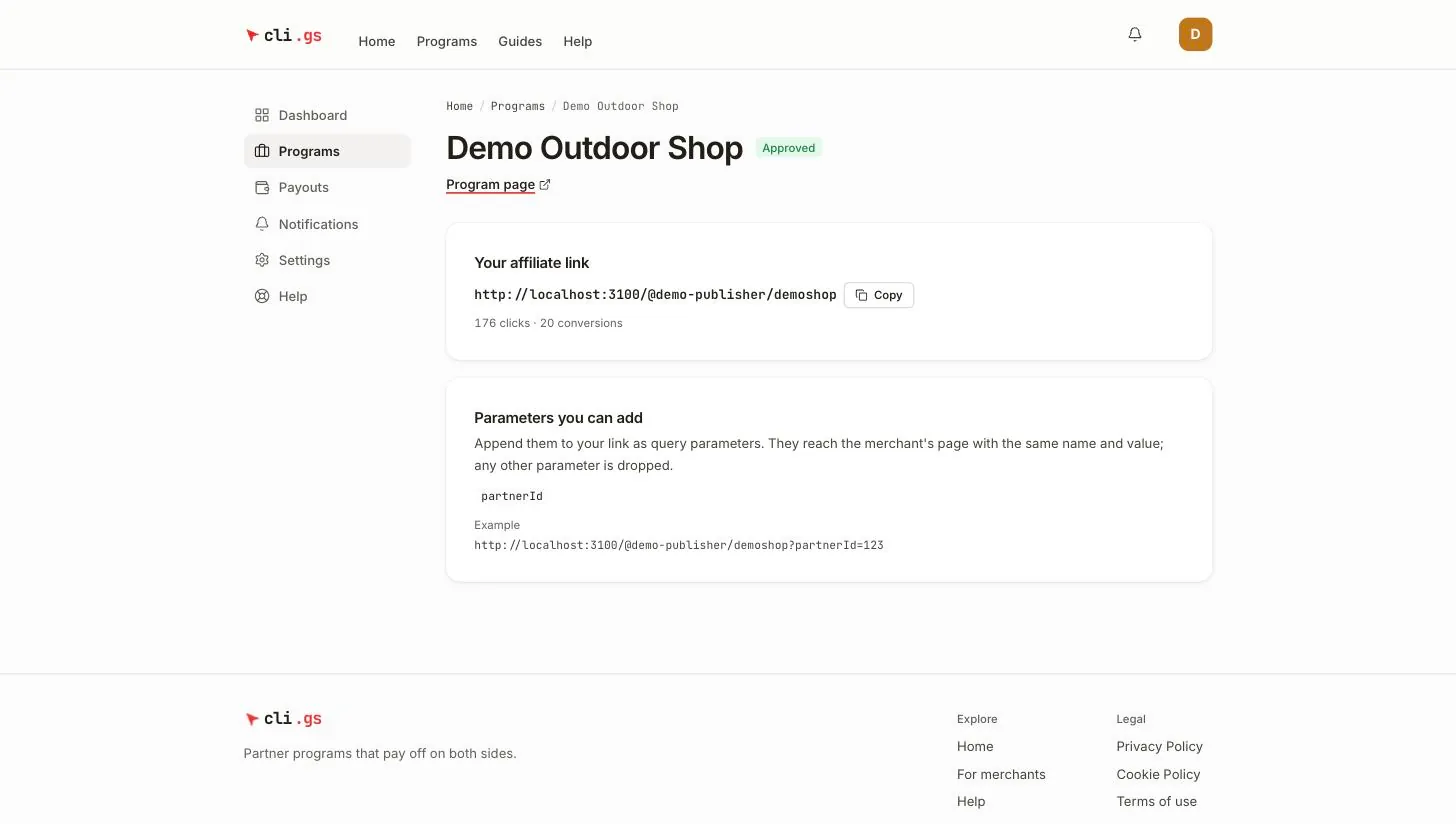
The link has this form:
https://cli.gs/@yourhandle/programmetoken@yourhandle is your username. The token identifies the programme. The token never changes, even if the merchant renames the programme, so links you've already shared keep working.
Product links
Some programmes use a product list instead of a single target. You then link to individual products. On such a programme's page you see Products with a table of product IDs, names and your link for each product. Download list (CSV) gives you the whole list.
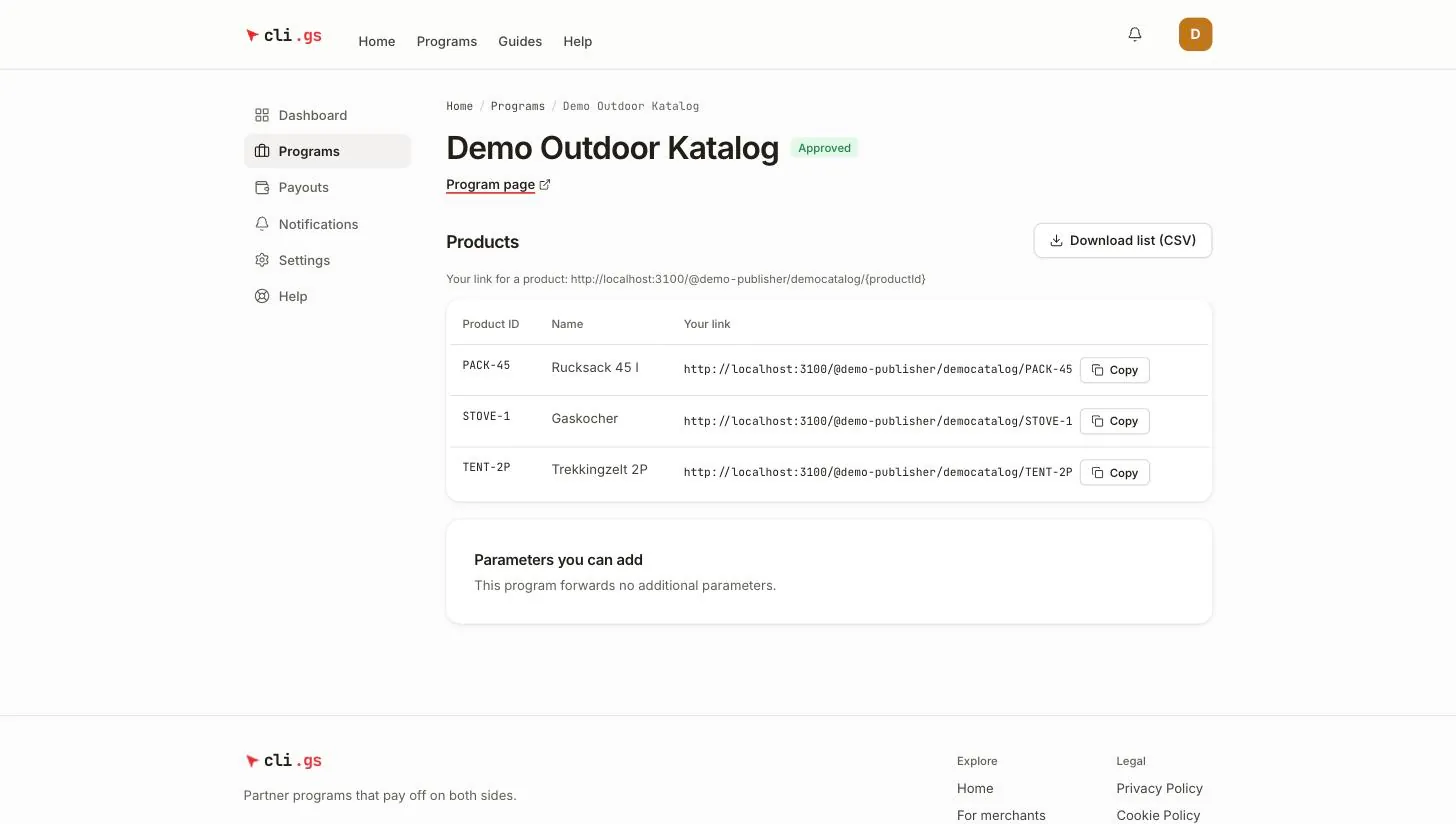
A product link adds the product ID:
https://cli.gs/@yourhandle/programmetoken/PACK-45If the merchant later removes a product from the list, its link sends visitors to the shop instead of showing an error. The click still counts. A product-list programme has no link without a product ID.
What happens on a click
- cli.gs records the click and creates a new ref code for it. The ref code is the unique code that later matches a sale to this click.
- The visitor is redirected to the merchant's page. The URL carries
refwith the ref code, plusutm_source=cligs,utm_medium=affiliate,utm_campaign(the programme) andutm_content(your handle). - The shop stores the ref code and reports it with the order. If that happens within the programme's cookie window, the conversion is yours.
cli.gs sets no cookie of its own. The ref code travels only in the URL. So whether a sale is attributed depends on the shop keeping the code until checkout. That is the merchant's side of the integration.
Not every click is counted in your statistics. Clicks from bots, more than 120 clicks per minute from one IP address, or suspicious click patterns still redirect the visitor. But they don't count as clicks.
Parameters you can add
Some programmes let you pass your own query parameters to the shop. A sub-ID, for example, shows you which of your pages a sale came from. Under Parameters you can add you see the names the merchant has allowed. Append them to your link:
https://cli.gs/@yourhandle/programmetoken?partnerId=123They reach the merchant's page with the same name and value. Any other parameter is dropped. The names ref, c and the utm_ parameters are reserved for cli.gs and can't be overwritten. So nobody can redirect your attribution by appending their own ref.
When a link stops working
A link does not redirect while:
- the programme is paused or has ended,
- the merchant has revoked your approval,
- your publisher account is suspended.
The programme page then says "Your link currently does not forward". Visitors who click the link land on the marketplace with a notice that the link is no longer active. If the merchant reactivates you, the same link works again.
Label your links as advertising
The terms of use require you to label advertising as such, for example with "ad" or "affiliate link". Unlabelled affiliate links are not allowed. cli.gs doesn't add a label for you. Put it next to the link where your audience sees it: in the post, the video description, the newsletter or on the page.
If you use cookies or similar technology on your own pages, obtaining the required consent from your visitors is your responsibility.