Get paid
Tax profile, credit notes, Stripe and the monthly payout.
cli.gs pays you once a month through Stripe. You don't write invoices: with every payout, cli.gs issues a credit note for your commissions. On this page you set up three things once, on the Payouts page of the publisher dashboard, and you'll learn how the monthly payout works.
In short:
- Payouts run on the 1st of each month for every payable EUR balance of at least €20.
- Before the first payout, complete the tax profile, accept the self-billing agreement and connect Stripe.
- Every paid payout comes with a credit note as a PDF. You can object to it within 30 days.
How the monthly payout works
- On the 1st of each month, every payable EUR balance of at least €20 becomes a payout. Smaller balances stay payable and carry over to the next month.
- The conversions it contains switch to In payout. From this moment they are final.
- cli.gs approves the payout. Stripe transfers the amount to your Stripe account and from there to your bank.
- The payout is marked Paid. You get a notification and a credit note as a PDF.
The top of the Payouts page shows your Payable · EUR balance and the threshold. Once your set-up is complete, it also shows the date of the next payout run. Until then it says "Complete the steps below to receive payouts."
Step 1: Tax profile
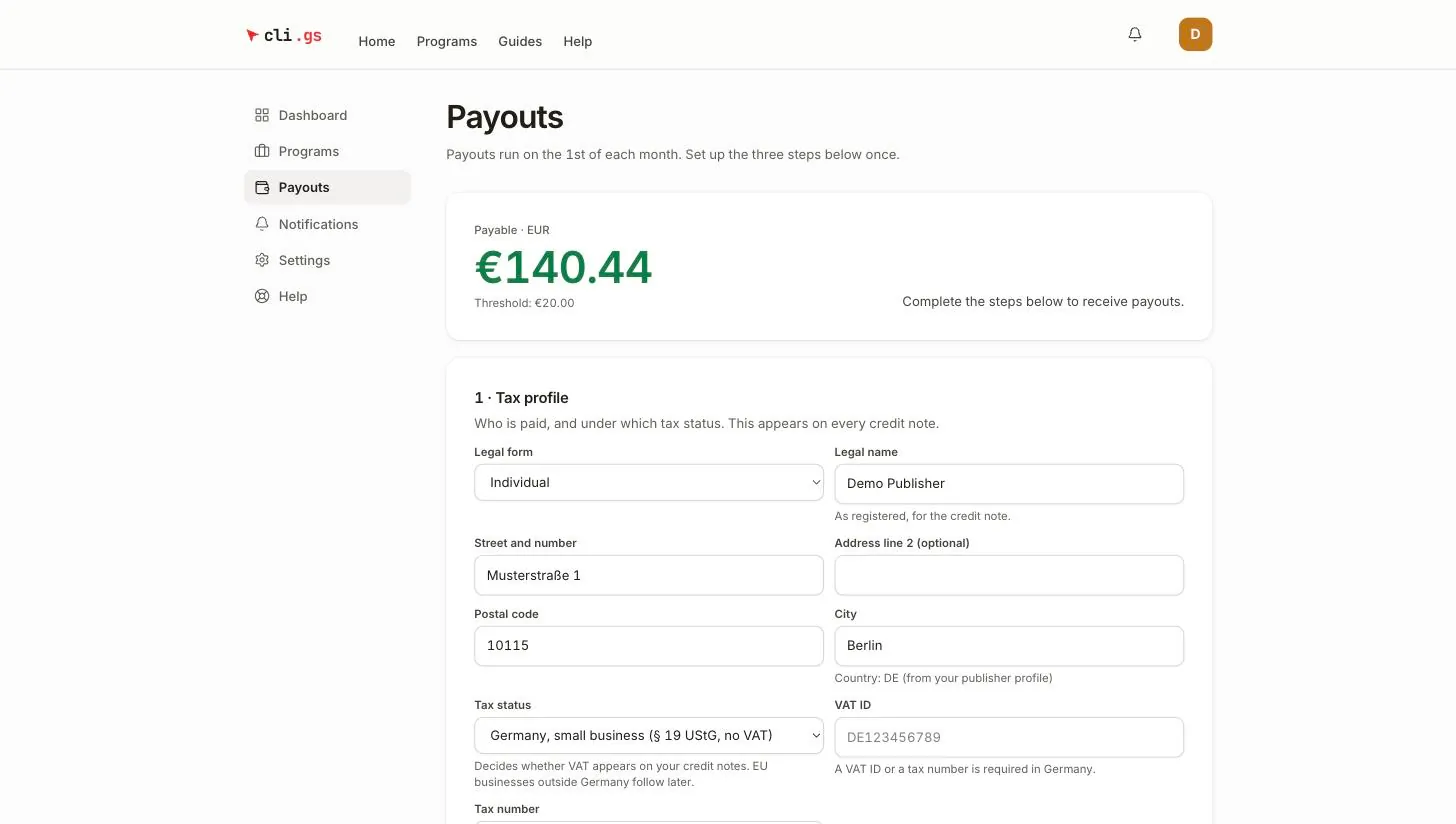
The tax profile says who is paid and under which tax status. It appears on every credit note.
- Choose the Legal form: Individual or Company.
- Enter the Legal name as registered.
- Enter your address: Street and number, optional Address line 2, Postal code and City. The country comes from your publisher profile.
- Choose the Tax status. It decides whether VAT appears on your credit notes.
- With a German status, enter a VAT ID or a Tax number. One of them is required.
- Click Save tax profile.
| Tax status | On the credit note |
|---|---|
| Germany, charging VAT (19 %) | 19 % VAT is added to your commission and paid to you on top. |
| Germany, small business (§ 19 UStG, no VAT) | No VAT, with the small-business note. |
| Outside the EU | No VAT, with the matching note. |
A German status needs the country DE in your profile. "Outside the EU" needs a non-EU country. You are responsible for the information being correct.
Step 2: Self-billing agreement
Instead of you writing us an invoice, cli.gs issues a credit note (Gutschrift) for your commissions with every payout. This follows § 14 (2) of the German VAT Act. The credit note replaces your invoice.
- Tick "I agree to settlement by credit note".
- Click Accept agreement.
The page then shows the version you accepted. If we publish a new version of the agreement, you're asked to accept it again before the next payout.
Step 3: Payout account with Stripe
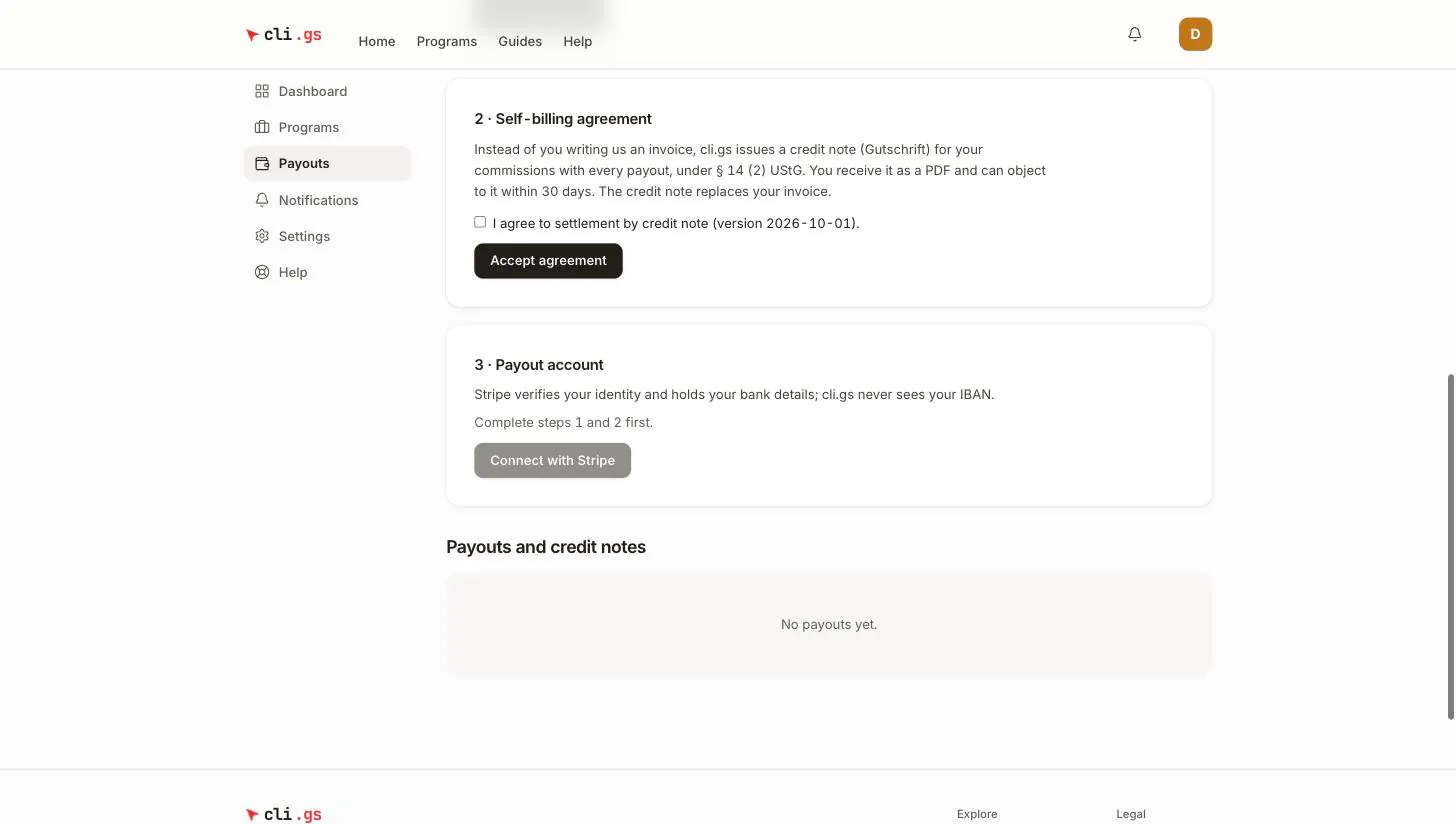
Click Connect with Stripe. This button is only available once steps 1 and 2 are complete. Stripe verifies your identity and holds your bank details. cli.gs never sees your IBAN. When you finish at Stripe, you return to the Payouts page and it says "Connected".
If you leave Stripe before finishing, the page says your set-up isn't finished yet. Click Continue at Stripe to carry on where you stopped.
Payouts and credit notes
Under Payouts and credit notes every payout is listed with its date, status and amount. For paid payouts, click the credit note number (for example CG-2026-000042) to download the PDF.
| Status | Meaning |
|---|---|
| Requested | Created by the monthly run, waiting for approval. |
| Approved | Approved, the transfer is being prepared. |
| Processing | The transfer is in progress. |
| Paid | Transferred; the credit note is available. |
| Failed | The transfer did not go through. The reason is shown; the amount becomes payable again. |
| Cancelled | Cancelled by cli.gs; the amount becomes payable again. |
Object to a credit note
Something on a credit note may be wrong, for example your address or the tax status. Then:
- Click Object to this credit note next to the paid payout.
- Describe the problem in 10 to 2,000 characters.
- Click Send objection.
Report objections within 30 days. The payout then shows "Objection received — we will get back to you."
When payouts are on hold
While your account is suspended, commissions and payouts are on hold. Once the matter is resolved, they continue or are unwound. See Rules for promotion.