Integration overview
The flow, your API key and the order of steps.
cli.gs pays commission only for sales your shop reports. On this page you'll see how a sale travels from a publisher's link to a booked commission, where you get your API key, and in which order to build the integration. Most of the work happens on your server: a few lines on the landing page and one HTTP call when an order is placed.
In short:
- A visitor arrives with
?ref=...in the URL. Your shop keeps that ref code until the order. - Your server reports the order to
POST /api/v1/track/conversion, authenticated with your API key. - Only the server postback books a commission. The tracking pixel is a fallback.
- Every programme has its own API key. Keep it on the server, never in the browser.
- Build in this order: capture the ref code, report conversions, sign requests, report returns, test.
How a sale travels
- A visitor clicks a publisher's link, for example
https://cli.gs/@mara/demoshop. - cli.gs records the click. It then redirects the visitor to your target URL and adds a reference code:
https://shop.example.com/?ref=01J9Z4K6V0QX8M2N3P5R7S9T1WABCD. - Your shop reads
reffrom the URL and keeps it in a cookie or session until checkout. - When the order is placed or paid, your server sends the ref code, your order id and the amount to
POST https://cli.gs/api/v1/track/conversion. The request is authenticated with your API key. - We check the code, apply your commission rules and record the conversion. From there it goes through the approval window and the holding period you set for the programme. Both terms are explained in How cli.gs works.
- If the customer returns the goods, your server reports a reversal. The commission goes back.
The ref code is the attribution. It identifies the click, and with it the publisher and the programme. The last click wins. If the code gets lost between step 2 and step 4, the sale can't be attributed, and no one can repair that afterwards.
Two ways to report
| Channel | How | Moves money on its own? |
|---|---|---|
| Server postback | Your server calls /api/v1/track/conversion | Yes |
| Tracking pixel | The order confirmation page loads /track/success.png | No, waits for confirmation |
The server postback is the channel to build. Ad blockers can't stop it, browser storage limits don't affect it, and your server can retry it.
The tracking pixel is only a fallback. Anyone could load its URL with any amount. So a pixel conversion is parked until a postback for the same order confirms it, or until you approve it by hand. See Tracking pixel.
Your API key
Your server needs the key before it can report anything. Each programme has its own key.
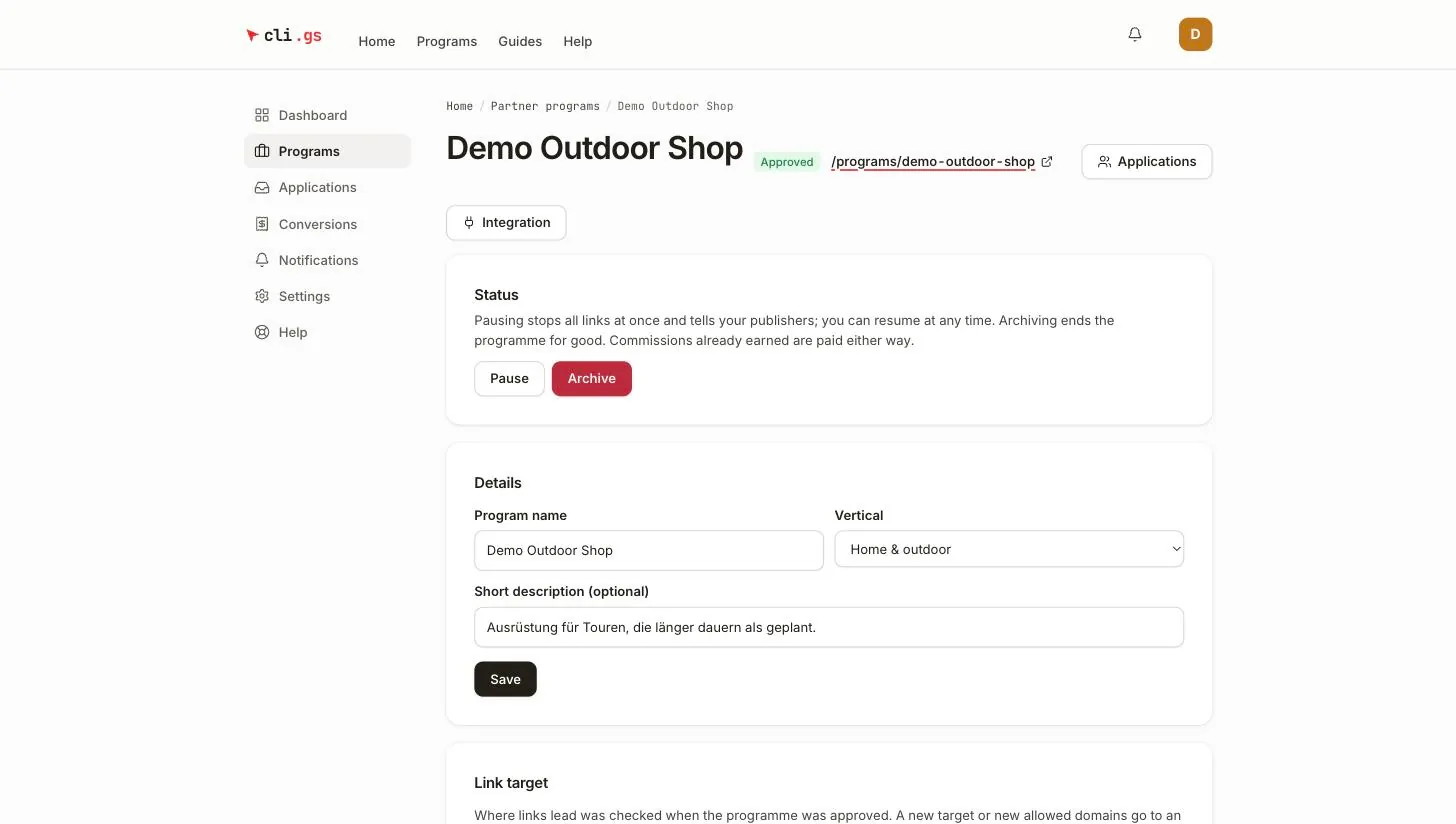
- Open Partner programs and choose the programme.
- Click Integration.
- In the first section, API key, click Issue key. The button works once the programme has been submitted for review.
- Copy the key straight into your shop's configuration or secret store.
What you receive
- The key starts with
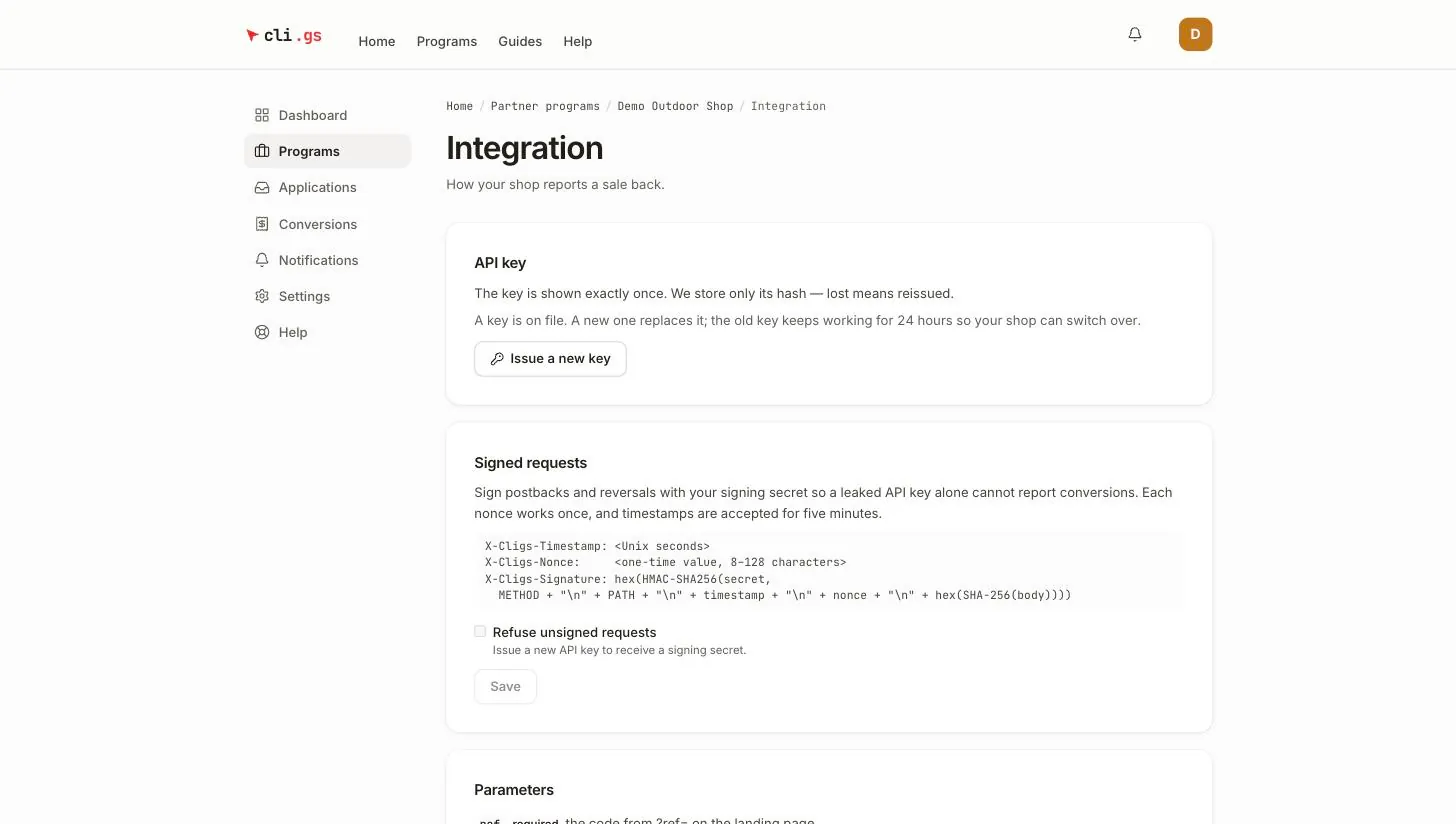
cligs_sk_and is shown exactly once. We store only a hash of it, so we can't show it again. - With the first key you also receive a Signing secret for signed requests. It's shown only this once as well.
If a key is lost or may have leaked
Click Issue a new key. The old key keeps working for 24 hours, so you can deploy the new one without losing conversions. The signing secret stays the same.
A key accepts only ref codes from clicks on its own programme. A code from another programme is refused with REF_PROGRAM_MISMATCH.
Build it in this order
Work through the pages of this section in order:
- Capture the ref code on your landing pages and keep it until the order.
- Report conversions from your server when an order is placed.
- Sign your requests, then switch on Refuse unsigned requests.
- Report returns and reversals so you don't pay for goods that came back.
- Optionally add the tracking pixel and a status callback. The callback tells your shop about approvals and rejections.
- Test everything with
test: truebefore real traffic arrives.
Two sections of the integration page help along the way. Parameters lists every field, and its code examples already contain your programme's values. Integration status shows whether the ref code survives your shop's redirects and whether reports are being refused.
Next steps
Start with Capture the ref code. It's the step most integrations get wrong, and nothing else works without it.